Windows 10 and 11 · NVIDIA
Hit record after it already happened.
It records all the time and saves nothing. Press one key and the last fifteen minutes become a video.
Free. No installer, no account. Needs FFmpeg, which is one command.
Always recording. Never keeping.
From the moment it starts, the last fifteen minutes of your screen and sound sit in a rolling buffer on disk. Everything older is overwritten before it ever becomes a file you own.
Nothing reaches your drive permanently unless you ask for it.
One key, and it is a file.
Press Alt+F10 and the buffer is written out as an MP4 in your Videos folder. The pieces are copied, not re-encoded, so the clip exists within seconds rather than minutes.
A notification appears. Click it and Explorer opens on the file.
One window, then it gets out of the way.
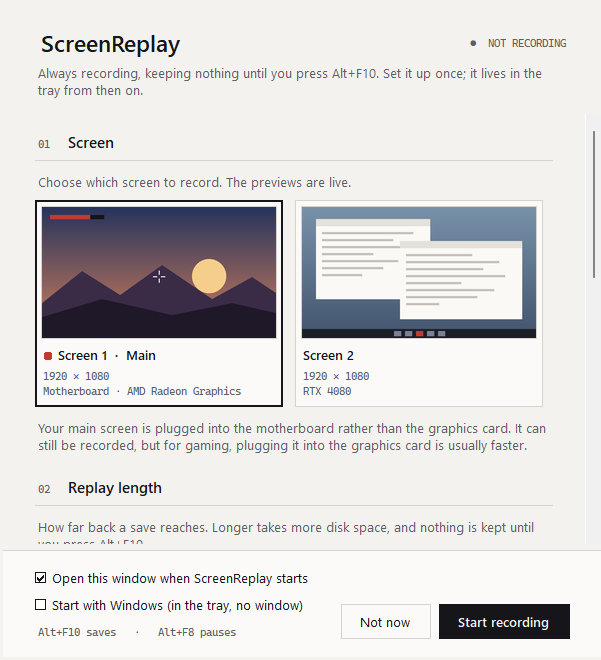
The first time it opens, you pick which screen to record from live previews, how far back a save reaches, and how hard it should work. Press Start recording and it moves to the tray.
Performance, Balanced and Quality presets cover most machines. Frame rate is the setting that really lightens the load. The rest mostly change file size.
Pause without losing it
Alt+F8 stops the recording for as long as you want. What was already buffered is still there when you come back.
You will not feel it
Frames stay on the graphics chip and its built-in encoder does the work, so the cost is a percent or two of your frame rate.
Your game and your voice, on one track.
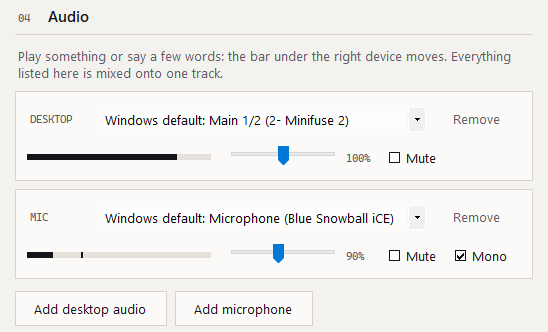
Add as many sources as you like: the speakers or headset your game plays through, a voice chat on another device, and any microphone, even one on a different audio interface.
Each one has a live level bar, so you can see which device is really carrying sound before you rely on it. Volume, mute and mono change while recording carries on.
Everything else worth knowing.
Three steps, no installer.
-
Install FFmpeg
ScreenReplay uses it to encode. One command in Terminal, once, and you never think about it again.
winget install Gyan.FFmpeg -
Unblock and unzip
Right-click the downloaded zip, choose Properties, tick Unblock, then extract it anywhere you like.
-
Run it
Launch
ScreenReplay.exe, pick your screen and sound, and press Start recording. A red dot joins your tray. Tick Start with Windows to have it there every day.
Questions people ask.
Windows says it cannot verify the publisher. Is that bad?
It means the file is not code-signed, which costs money I have not spent. SmartScreen shows that warning for every unsigned program. Choose More info, then Run anyway. If you would rather not, unblocking the zip before you extract it avoids the prompt entirely.
Does it work on AMD or Intel graphics?
AMD, partly. A screen plugged into AMD graphics, including the graphics built into many Ryzen processors, is recorded with AMD's own encoder. That has been tested on a PC that also has an NVIDIA card. A PC with only AMD graphics should work the same way, but nobody has tried one yet. Intel graphics are not supported yet.
It recorded the wrong screen.
Choose the right one under Screen in the setup window, which you can reopen with Settings in the tray menu. Each screen shows a live preview, so there is no guessing which is which. Windows' own screen numbers often have nothing to do with where your monitors sit.
Why does it need FFmpeg?
FFmpeg does the capturing, encoding and stitching. Bundling it would turn a 409 KB download into something around 100 MB, so ScreenReplay uses the copy on your machine instead. One winget command installs it.
Will it slow my game down?
Barely. Capture happens on the graphics chip and encoding runs on the dedicated encoder beside it, not on your processor. Expect one or two percent of your frame rate. The buffer lives on disk rather than in memory, so your RAM is untouched.
How much disk does the buffer use?
Around two to three gigabytes of temporary files for fifteen minutes at 1080p60. It is a fixed ring, so it never grows beyond that, and it is deleted when you exit the app. Shorten the replay length in the setup window if you want less.
The hotkey does nothing.
Something else already owns it. GeForce Experience uses Alt+F10 for the very same feature. Open the settings file from the tray menu, change Hotkey to a free combination, and restart. The app tells you at startup when a hotkey fails to register.
Why is my recording black?
Protected video such as Netflix is blanked by Windows itself at the capture layer, so no recorder can see it. Games and ordinary applications are unaffected.
How do I uninstall it?
If you ticked Start with Windows, untick it in the setup window first. Then exit from the tray menu and delete the folder. Settings live in %APPDATA%\ScreenReplay and the buffer in %LOCALAPPDATA%\ScreenReplay; delete those two folders and nothing remains.
Free, and smaller than a photo.
One 940 KB executable in a 409 KB zip. No installer, no account, no telemetry. Your clips never leave your machine. Delete the folder to uninstall.
Windows 10 and 11, NVIDIA graphics (AMD partly, see the FAQ), and FFmpeg.